Chapter 08 of 20 · 3 min · 40% through
Decks
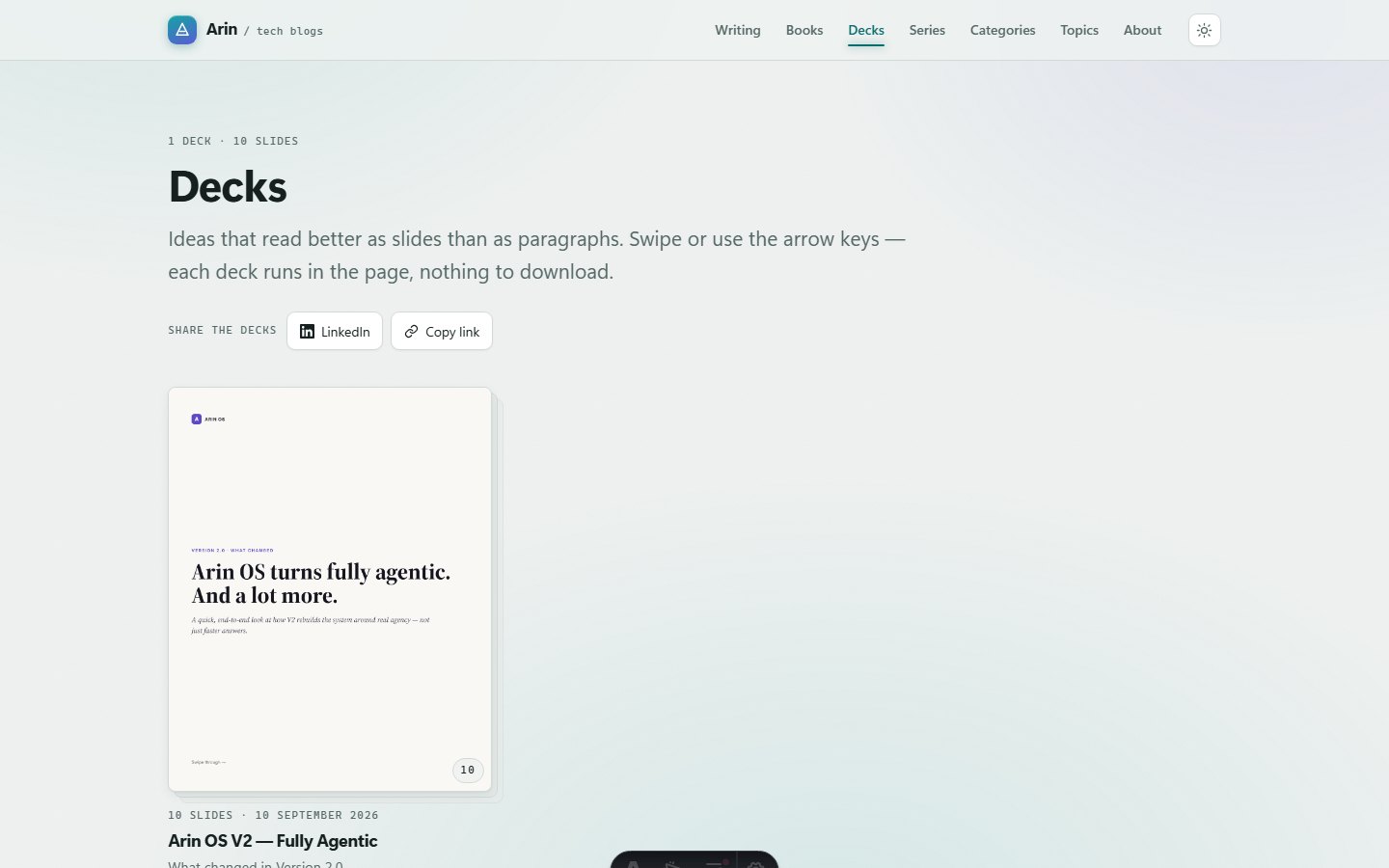
Ideas that read better as slides
Some material is neither an essay nor a book. A product update, an architecture walk-through, the shape of an idea — these read better as a sequence of slides than as paragraphs, and they are the native format of professional social feeds.
The problem with that format is what happens afterwards. A carousel posted to a network lives inside that network. It cannot be linked to properly, it is not indexed usefully, and it disappears down a feed within a day.
The decks module gives that material a permanent home on the site.
What a deck is
A deck is an ordered set of slide images, each with alt text and an optional caption, plus the usual metadata and an optional note that renders underneath.
Slides are images rather than rendered HTML, and that is the honest choice: a deck is a designed artefact. Its typography, spacing and colour are the point. Re-flowing it into web components would produce something that is nearly the design, which is worse than a picture of the real thing.
Each deck declares a stage shape — square, portrait or wide, matching the three aspect ratios professional carousels actually use. Portrait is the default because it is what the format is built around.
The viewer
The viewer is the piece I am most pleased with, and it is deliberately not a JavaScript slideshow.

Every slide is present in the page and reachable by scrolling. The stage is a native horizontally-snapping track, which means the deck works with no JavaScript at all, gets touch swipe and trackpad gestures for free, and never hides its own content from anything that does not run scripts — search engines included.
The script only adds: previous and next buttons, arrow-key and Home/End stepping, the slide counter, the progress bar, the dot indicators for short decks, the thumbnail strip, full screen, and deep links to a specific slide.
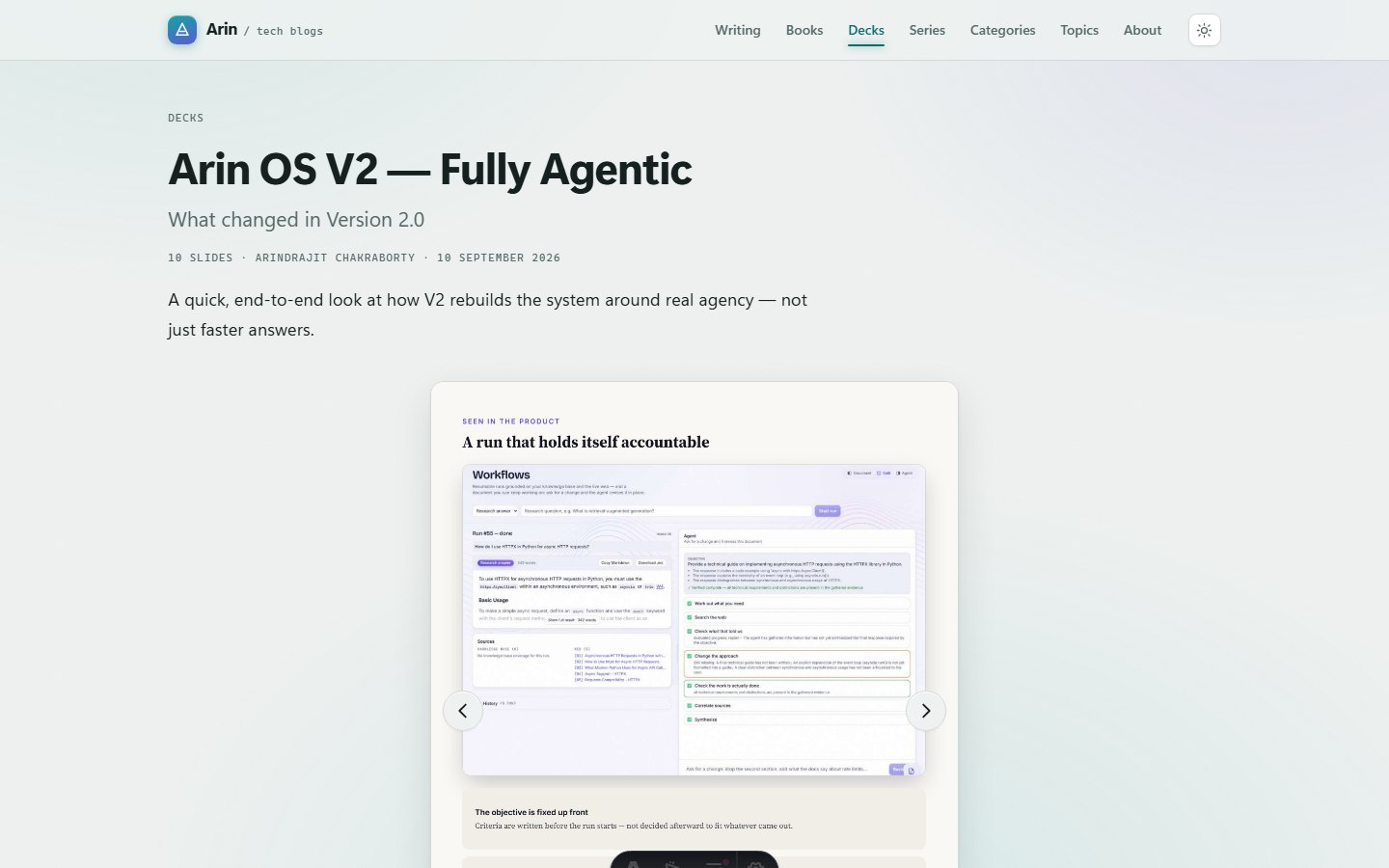
Two details worth calling out. Slides are contained, never cropped — a portrait slide on a wide screen is letterboxed rather than having its top and bottom cut off, because losing the last line of a diagram to fill a box is not a trade worth making. And past a dozen slides the dot indicators give way to a progress bar, because twelve dots is a row of indistinguishable targets.
Getting slides in
Authoring happens in the Decks tab. A deck is created, files are dropped in, and each page becomes a slide.


The drop target accepts presentation files, PDFs and plain images. A presentation is rendered to pages and each page becomes a slide; a PDF is rasterised the same way; images are taken as-is, one per slide. Conversion runs on the machine rather than in the browser, because there is no browser-side renderer for presentation formats that gets the result right — and “nearly right” is useless for a deck whose entire point is that it looks like the original.
Every slide gets an alt text field and a caption field. The alt text is not optional in spirit: a deck is entirely images, so without it the whole thing is invisible to a screen reader.
Publishing rules
Two rules keep decks honest, and both exist because the failure they prevent is worse than the inconvenience they cause.
A deck with no slides cannot be published. An empty stage behind a card in the rack is worse than the deck simply not being there.
Removing the last slide from a published deck returns it to draft. Same reason, arrived at from the other direction.